Voice Messages
This feature allows users to post voice messages.
This setting can be configured within chat settings.
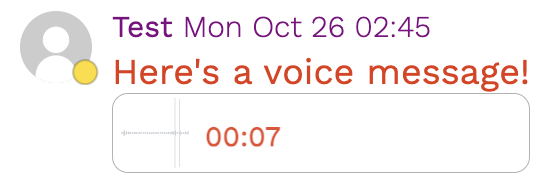
If you have embedded your chat, please note that allow="microphone" must be present in your embed code for this feature to work, otherwise access to the microphone will always be denied.
If you've generated an embed code for your website recently or you are using the <script> tag to embed your chat, this is already done for you.
You can always regenerate your embed code and copy and paste it onto your website if you're not sure.
Allowing voice message permissions
If you receive an error message stating that you must allow permission to use your microphone, you'll need to edit your settings to allow permission.
Browsers
Chrome (Desktop)
- Click the site settings icon to the left of the address bar.
- Open Site settings.
- Find Microphone and change the permission to Allow.
- Reload the page.
Safari (Desktop — macOS)
- In the menu bar, click Safari → Settings.
- Select Websites, then Microphone.
- Find the website and change its permission to Allow.
- Reload the page.
Firefox (Desktop)
- Click the permissions icon to the left of the address bar.
- Find the microphone permission and remove the blocked permission, if shown.
- Reload the page and allow microphone access when prompted. Alternatively, open Settings → Privacy & Security → Permissions → Microphone → Settings and change the website's permission.
Mobile devices
Chrome (iOS — iPhone/iPad)
- Open the Settings app on your device.
- Find Apps → Chrome and enable Microphone.
- Return to Chrome and reload the website. If the site has its own blocked permission, tap the microphone icon beside the address bar and enable access.
Safari (iOS — iPhone/iPad)
- Open Safari and visit the website.
- Tap the page settings icon beside the address bar, then select Website Settings.
- Set Microphone to Allow.
- Reload the page. If necessary, open Settings → Apps → Safari → Microphone and change the permission to Ask or Allow.
Firefox (iOS — iPhone/iPad)
- Open the Settings app on your device.
- Go to Privacy & Security → Microphone and enable access for Firefox, if listed.
- Return to Firefox, reload the website, and allow microphone access when prompted.
Chrome (Android)
- Open Chrome and visit the website.
- Tap the icon to the left of the address bar, then open Permissions or Site settings.
- Set Microphone to Allow. If you cannot find this option, open Chrome's ⋮ menu → Settings → Site settings → Microphone, then select the website under Blocked and allow access.
- Reload the page.
Firefox (Android)
- Open Firefox and visit the website.
- Tap the permissions icon beside the address bar, if available, and clear the blocked microphone permission so Firefox asks again.
- Reload the page and tap Allow when prompted.
- If microphone access is disabled for Firefox itself, open Android Settings → Apps → Firefox → Permissions → Microphone and allow access.
Note: If microphone access is still not working, check that your device's system settings also allow microphone access for the browser.